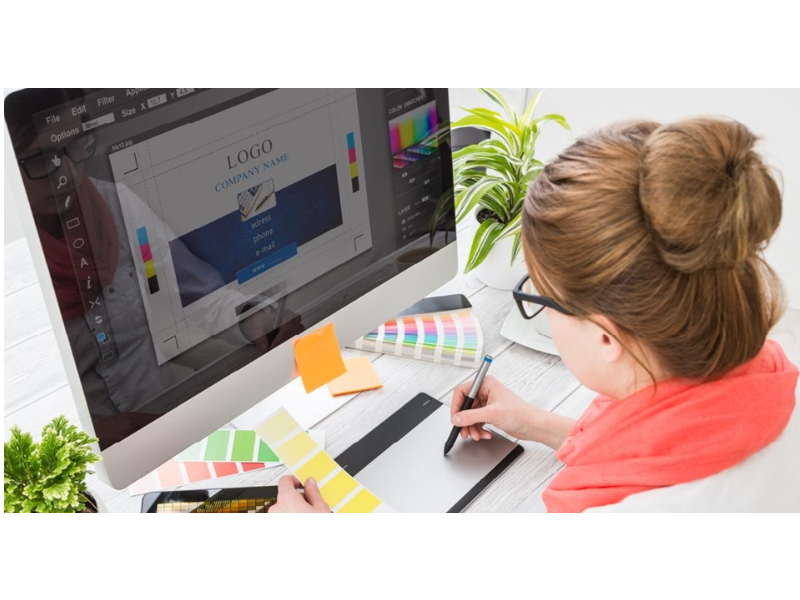
In the fast-paced world of visual communications, graphic designers constantly manage a diverse array of digital file formats. Among the most common tasks in a design workflow is transforming standard image files into standardized document formats. Specifically, understanding how and why graphic designers convert JPG to PDF (Portable Document Format) is essential for delivering clean, professional, and print-ready creative assets.
While an everyday computer user might rely on simple drag-and-drop online tools to turn a photo into a PDF document, industry professionals approach this process with meticulous care. Factors such as color spaces, raster resolutions, compression artifacts, bleed settings, and multi-page layouts require precise attention to ensure that the final output looks immaculate across digital screens and commercial printing presses alike.
Understanding the Difference: JPG vs. PDF
To appreciate the conversion process, it is important to first understand the structural differences between these two widely used file formats.
The JPG (or JPEG) format is a lossy raster image file type designed primarily for photos and web graphics. JPGs compress image data by discarding non-essential details, making them lightweight and easy to share online. However, every time a JPG is edited and re-saved, it undergoes further compression, which can lead to visible artifacts and quality loss over time. Furthermore, JPGs are single-page raster structures that do not support vector shapes, embedded fonts, or complex prepress configurations.
In contrast, the PDF format created by Adobe is a versatile container file. A PDF can hold high-resolution raster images, scalable vector graphics, selectable text typography, color profiles, interactive elements, and multi-page document structures. When graphic designers convert a JPG into a PDF, they are essentially placing the image inside a flexible digital wrapper that stabilizes the visual data and prepares it for distribution or production.
Key Reasons Designers Convert JPG to PDF
Graphic designers rarely convert files arbitrarily. Transitioning a project from JPG to PDF serves several critical functions in client presentation and print manufacturing:
- Print Standardization: Commercial printing equipment requires exact specifications, including trim lines, registration marks, and CMYK color encoding. Converting images to PDF allows designers to apply standard prepress specifications (such as PDF/X standards).
- Multi-Page Aggregation: Designers frequently combine dozens of individual JPG assets—such as portfolio pages, brand identity guides, or product catalogs—into a single, organized PDF file.
- Vector and Text Layering: Wrapping a JPG image in a PDF allows designers to overlay sharp, resolution-independent vector elements, logos, and typography directly over the image base.
- File Security and Asset Protection: PDFs allow designers to restrict editing capabilities, password-protect sensitive draft designs, or embed watermarks prior to client approval.
- Consistent Cross-Platform Rendering: PDFs display uniformly regardless of the operating system, device screen, or software application used to view them.
Professional Software Tools and Workflows
Professional graphic designers employ several software applications within the Adobe Creative Cloud suite and other specialized tools depending on the specific project requirements.
1. Adobe InDesign: The Layout Standard
When creating complex, multi-page publications that include JPG images, Adobe InDesign is the industry standard. Designers place JPG images into frame containers, arrange typography around them, and export the entire layout as a high-quality PDF.
- Workflow: Create document grid > Place JPG images (File > Place) > Set image resolution (PPI) > Export as PDF/X-4 or Press Quality.
- Advantage: Offers total control over pagination, document bleed, crop marks, and color space conversion.
2. Adobe Photoshop: High-Resolution Processing
If the task involves a single image or a series of digital illustrations where fine-tuning color balance and retouching is necessary, Adobe Photoshop is the primary tool.
- Workflow: Open JPG in Photoshop > Convert color mode to CMYK or RGB as required > Adjust image size to 300 DPI/PPI > Choose ‘Save As’ or ‘Save a Copy’ > Select Adobe PDF.
- Advantage: Allows designers to modify compression presets (such as ZIP or high-quality JPEG) to minimize artifacting while embedding custom ICC color profiles.
3. Adobe Illustrator: Vector-Heavy Projects
When an image needs to be integrated into promotional materials like banners, posters, or packaging templates, designers use Adobe Illustrator.
- Workflow: Import JPG onto artboard > Add vector shapes, logos, or text > Save As Adobe PDF > Select appropriate PDF preset (e.g., Illustrator Default or High Quality Print).
- Advantage: Keeps vector elements crisp while encapsulating the underlying JPG raster file.
4. Adobe Acrobat Pro: Assembly and Optimization
For merging multiple existing JPG files quickly without rebuilding complex layouts, designers turn to Adobe Acrobat Pro.
- Workflow: Open Acrobat > Combine Files into a Single PDF > Select JPG files > Run ‘Preflight’ inspection > Save.
- Advantage: Ideal for rapid document assembly, OCR (Optical Character Recognition) text conversion, and final PDF optimization.
Critical Technical Factors for Flawless Conversions
Converting a JPG to PDF is more than clicking a export button. Professional designers carefully evaluate several technical parameters during the conversion process:
Resolution and DPI (Dots Per Inch)
Web graphics are typically saved at 72 to 96 DPI to keep file sizes small. However, print applications demand a minimum of 300 DPI at full physical size. Converting a low-resolution 72 DPI JPG into a PDF will not magically increase image quality; designers must ensure the original source image possesses sufficient pixel dimensions before conversion.
Color Space Management
Digital displays utilize the RGB (Red, Green, Blue) color model, whereas commercial printers utilize CMYK (Cyan, Magenta, Yellow, Key/Black). During the conversion process, graphic designers convert RGB JPGs into CMYK PDFs to prevent unexpected color shifts during print runs.
Compression and Artifact Suppression
PDF export dialogs offer various compression algorithms. Designers typically choose loss-free ZIP compression for line art or graphics with text, while using maximum quality JPEG compression for complex photographic content to maintain visually indistinguishable accuracy.
Conclusion
Converting JPG files to PDF is a foundational technical workflow that bridges the gap between digital content creation and professional asset delivery. By utilizing powerful creative applications like Adobe InDesign, Photoshop, and Acrobat, graphic designers ensure that raster graphics maintain their visual integrity, color fidelity, and structural alignment. Whether preparing an extensive brand portfolio for digital review or sending high-resolution artwork to a printing press, mastering the nuances of JPG-to-PDF conversion remains an essential discipline for design professionals worldwide.